
GMC Bulldozer R4 - Computer Case Review?!
- GMC Bulldozer R4 - Computer Case Review?!
- Page 2 - Packaging, general appearance
- Page 3 - Closer look
- Page 4 - Installation, test system and methodology
- Page 5 - Tests and results
- Page 6 - Conclusion
Page 4 - Installation, test system and methodology
Page 4 - Installation, test system and methodology
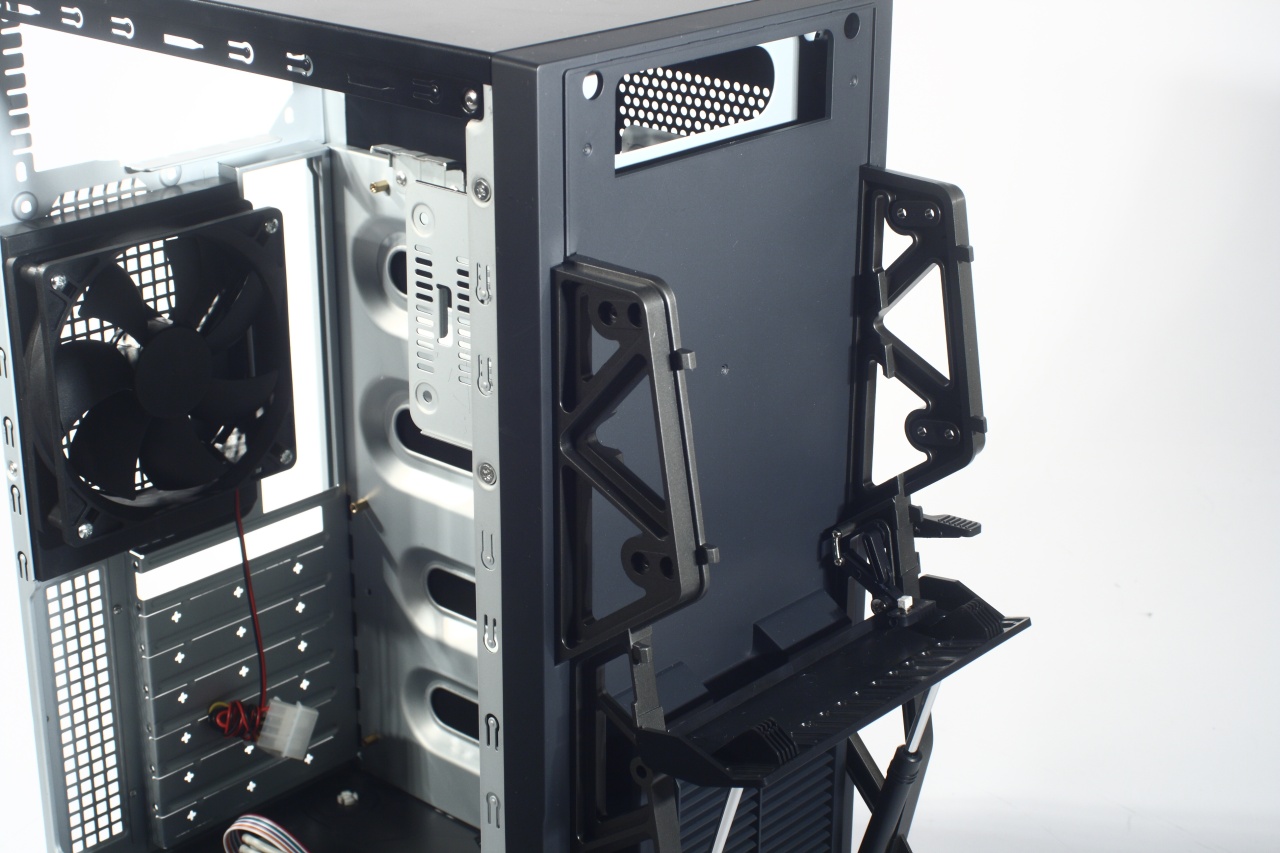
On with the most exiting part of this review – fitting in whole computer in the limited volume available. Naturally (and most impatiently) we start with the optical drive. The bay cover is held in place by mere pegs and flies off with little effort revealing the actual pusher behind the open/close lever. It is provided with few attachments that modify its position in order to assure that the button of every kind of optical drive that can be used will be properly pressed:
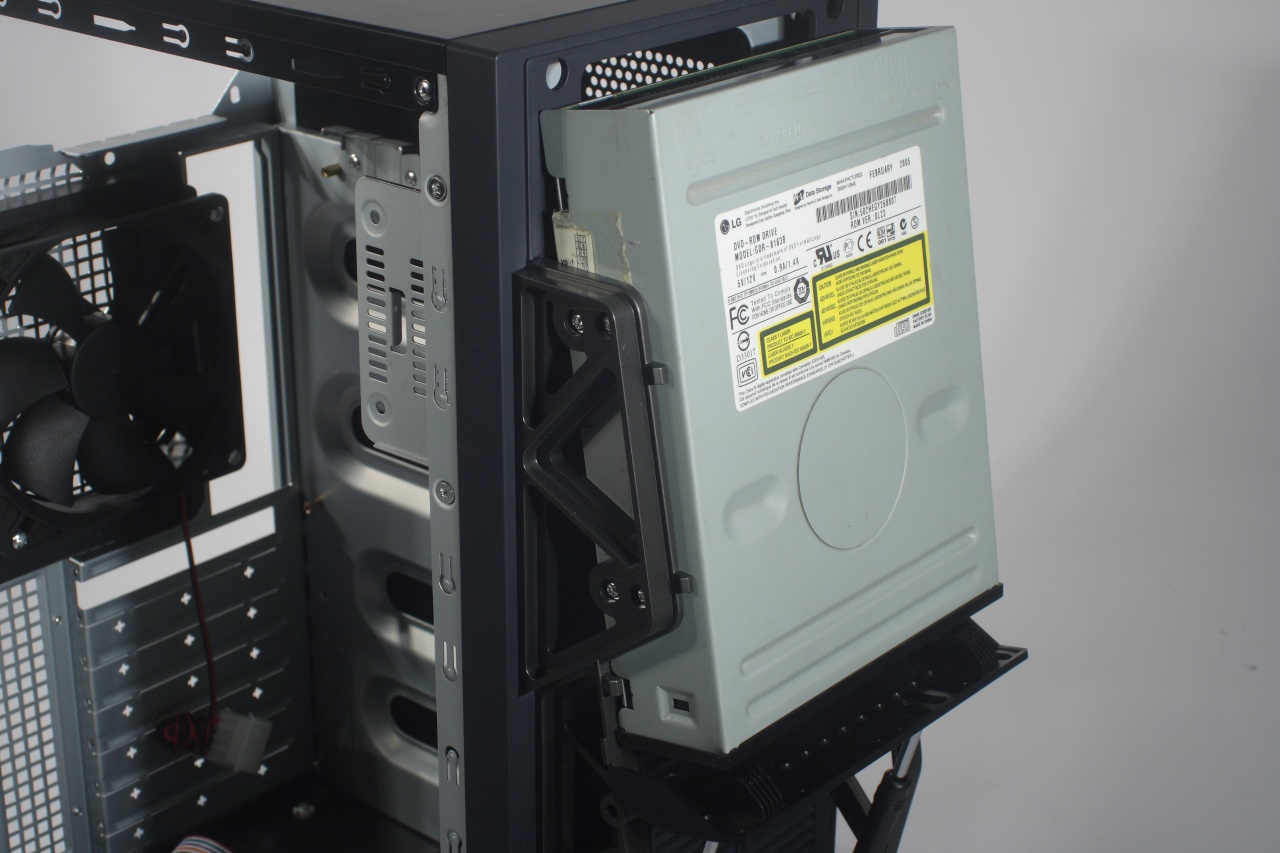
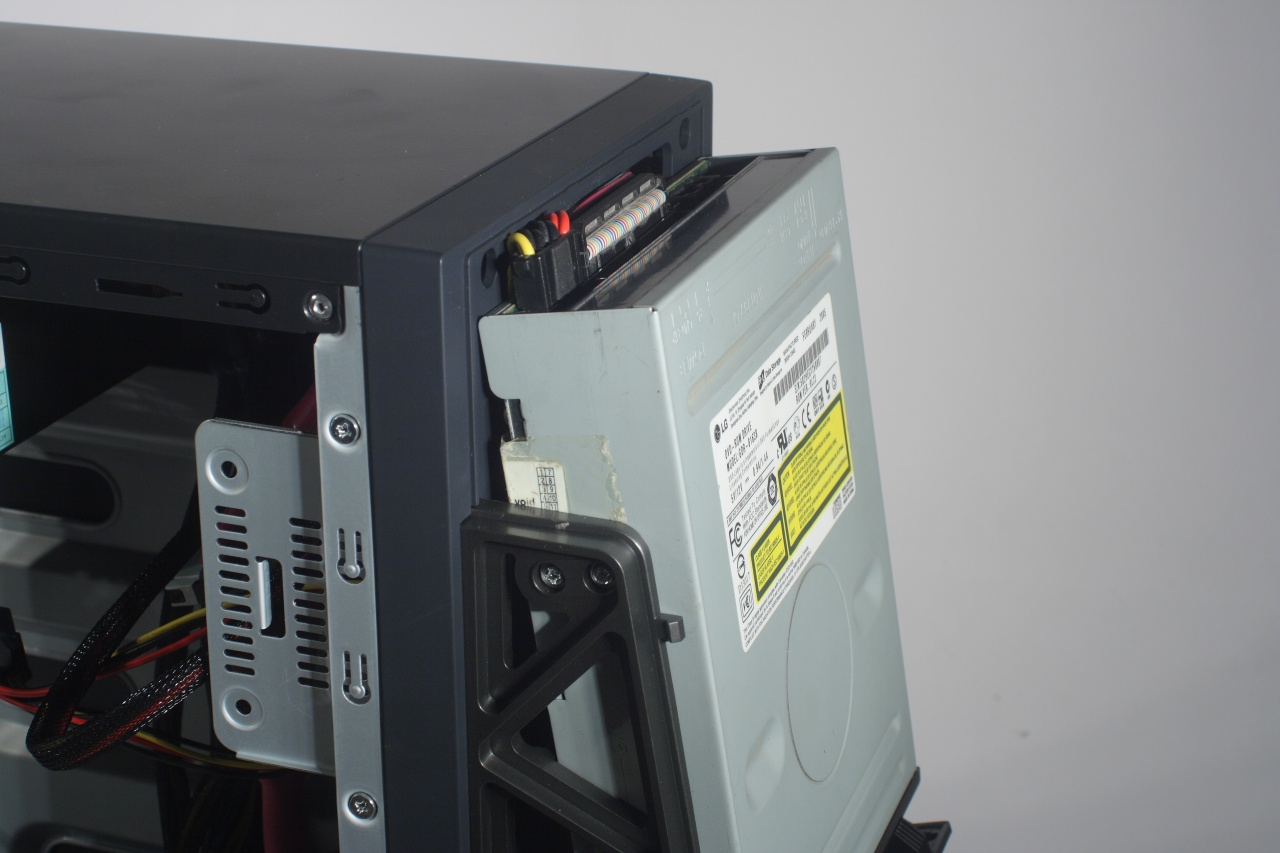
All that's left now is to actually mount the optical drive and plug in its cables. Which proved to be somewhat of an issue - apparently the manufacturer never thought that some people might still use optical drives of the older generations that are simply physically longer, which in effect prevents proper reattachment of the bay cover. Thar issue we did avoid by attaching the drive to the case, lower and with dual layer adhesive tape instead with screws on the provided points for that. That is not a serious issue though, since not only newer devices are shorter, but they're also cheap. Still, that could be played better (the space needed was less than 5mm) – so do keep it in mind it does not perfectly fits everything:
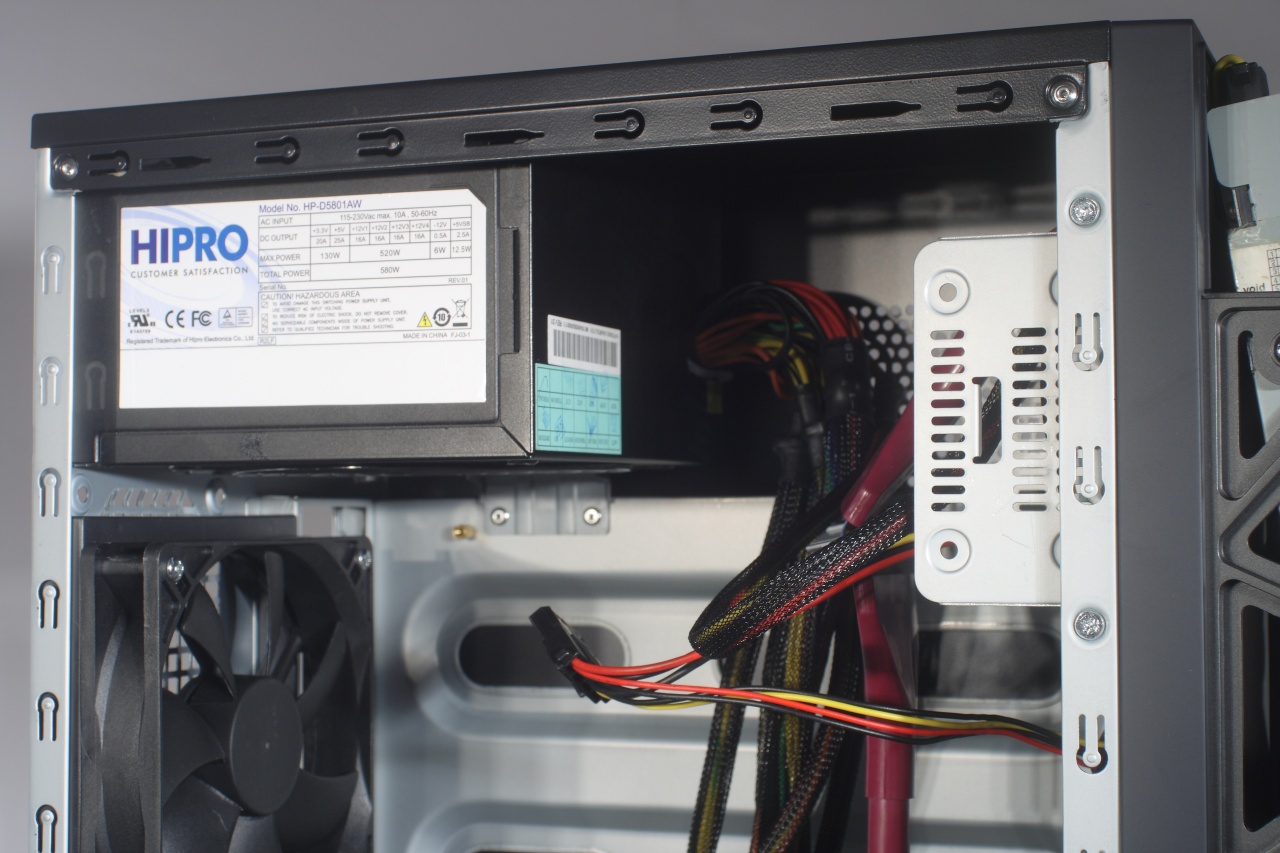
Time to put in the PSU – guess the limited volume starts to show eh?
Mounting the motherboard next – it fits perfectly and with the hard drive bay removed nothing is in the way. A tad tight but comfortable to wok with:
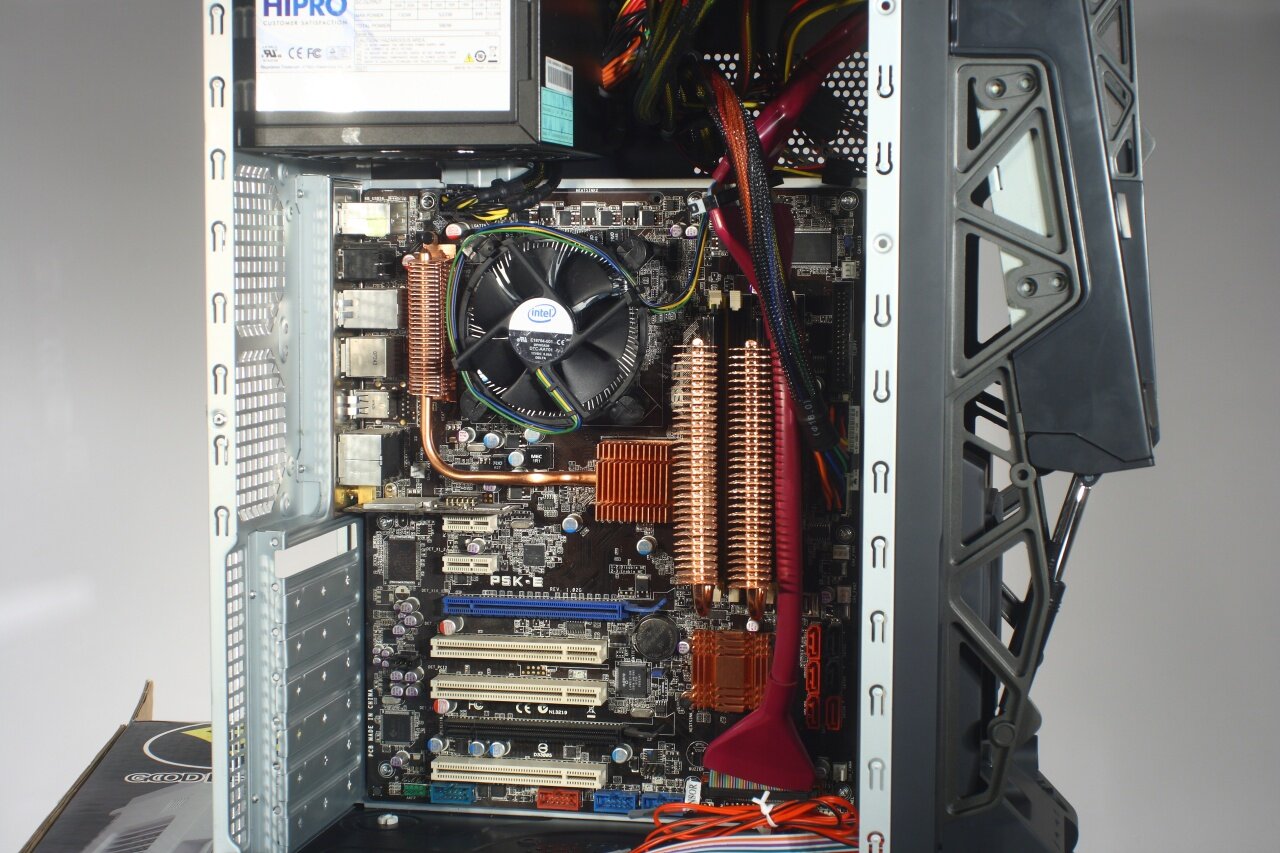
Last in are the graphic card and the hard drives. Clearly there is enough space for bulky cards, cables are becoming a nuisance though. Not that is impossible but we would surely like to see how would two or even three graphic cards fit in there. Also, hard drives greatly challenge arranging cables behind them (alas there is no way to pass the cables in between the motherboard back plate and the left cover) along will slightly obstructing memory slots, preventing use of memory modules with marge coolers. At least there is enough space for a large processor cooler:
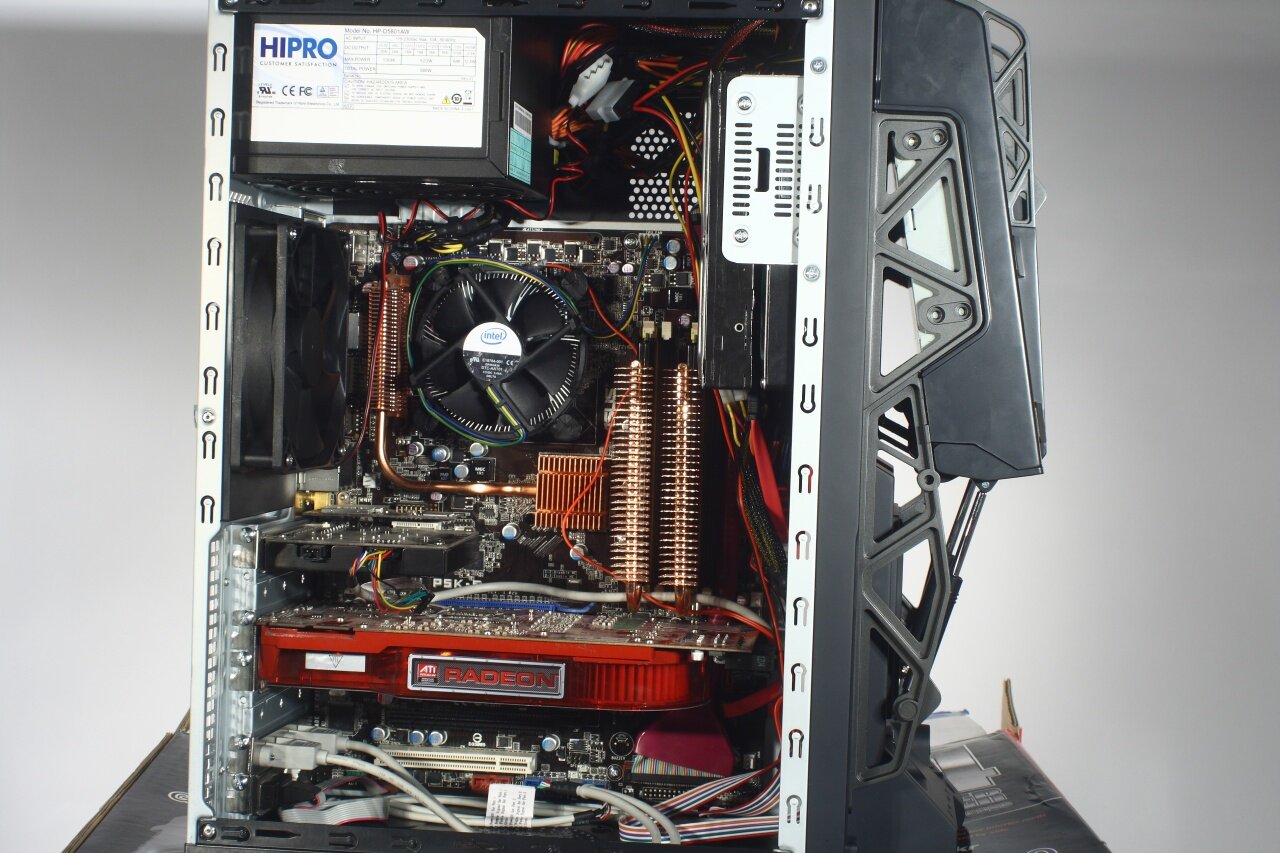
And for our efforts this is what we got - compact, neatly arranged case holding everything it should:
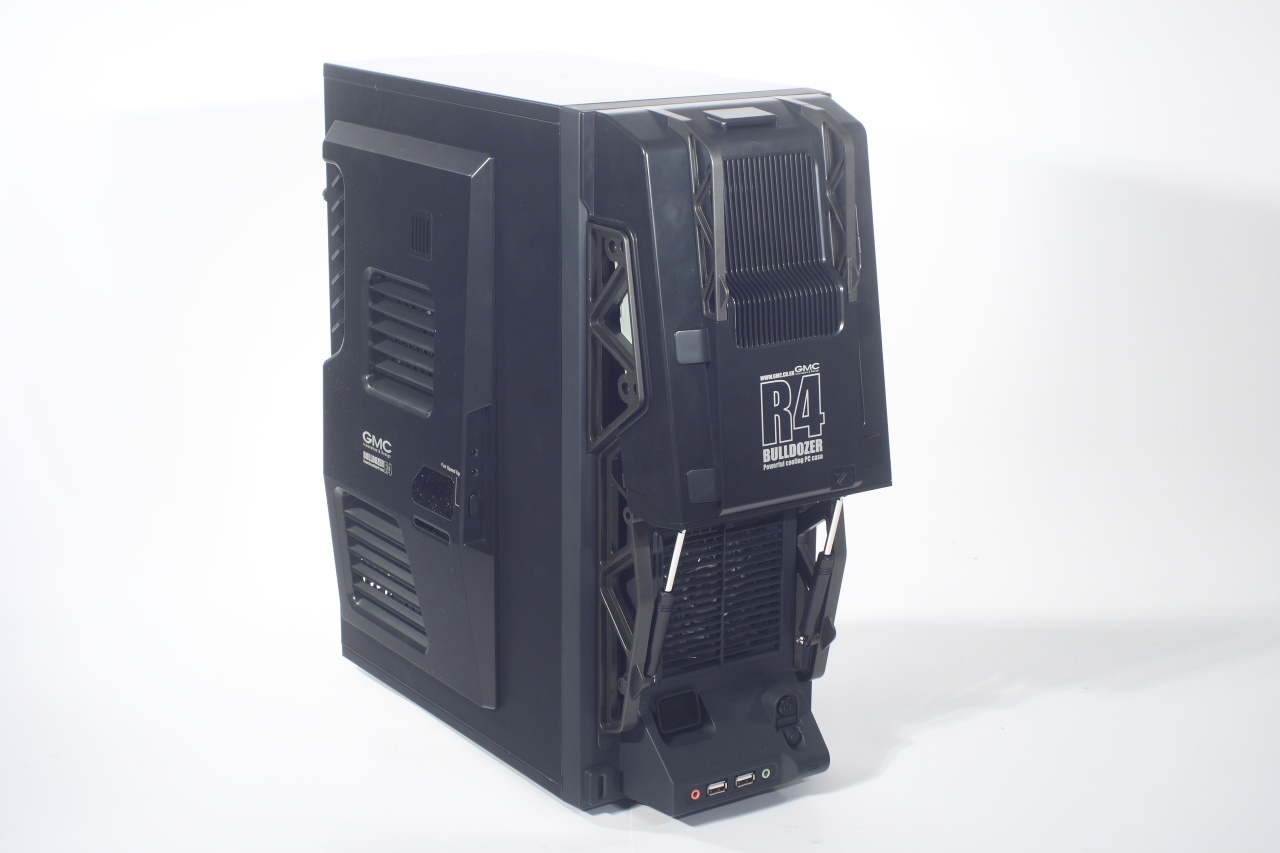
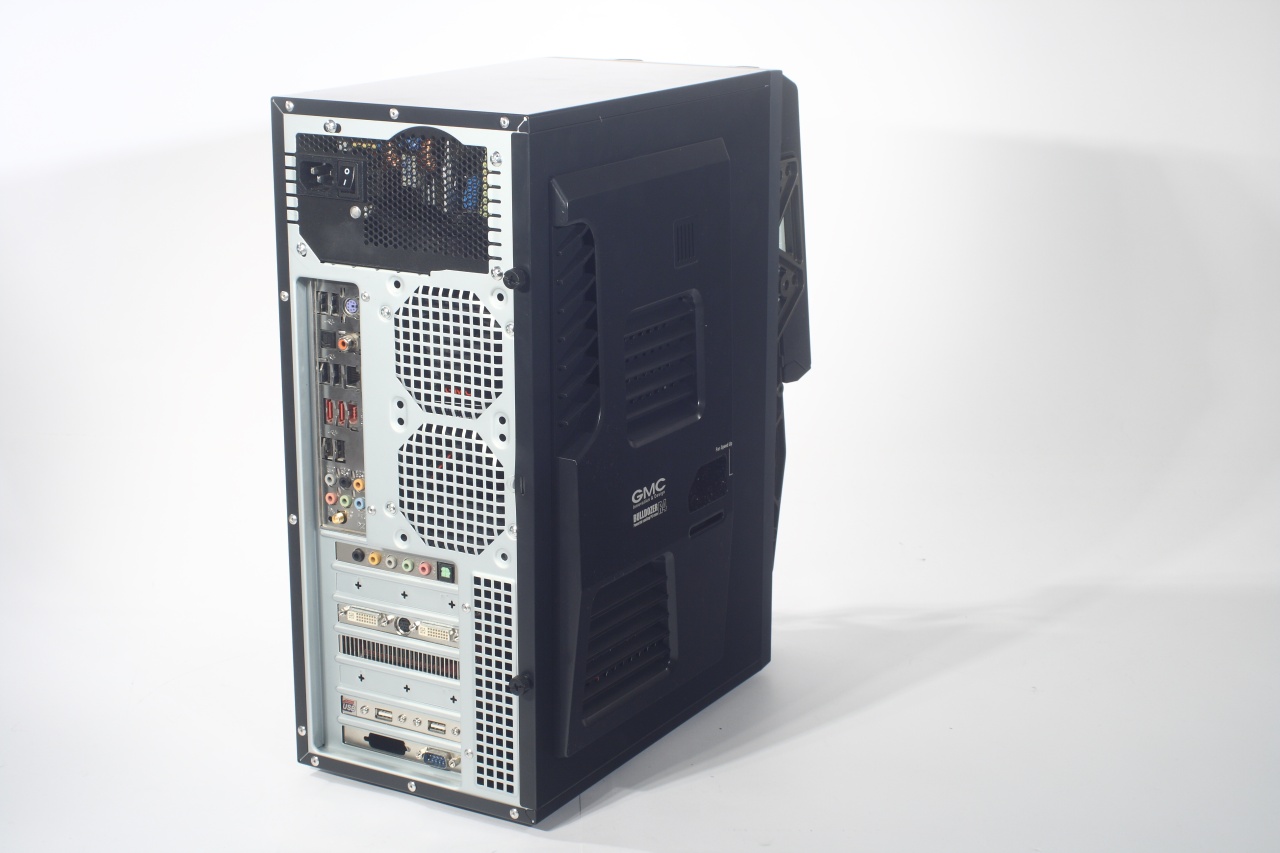
Time to plug it in and find whether everything is working fine.
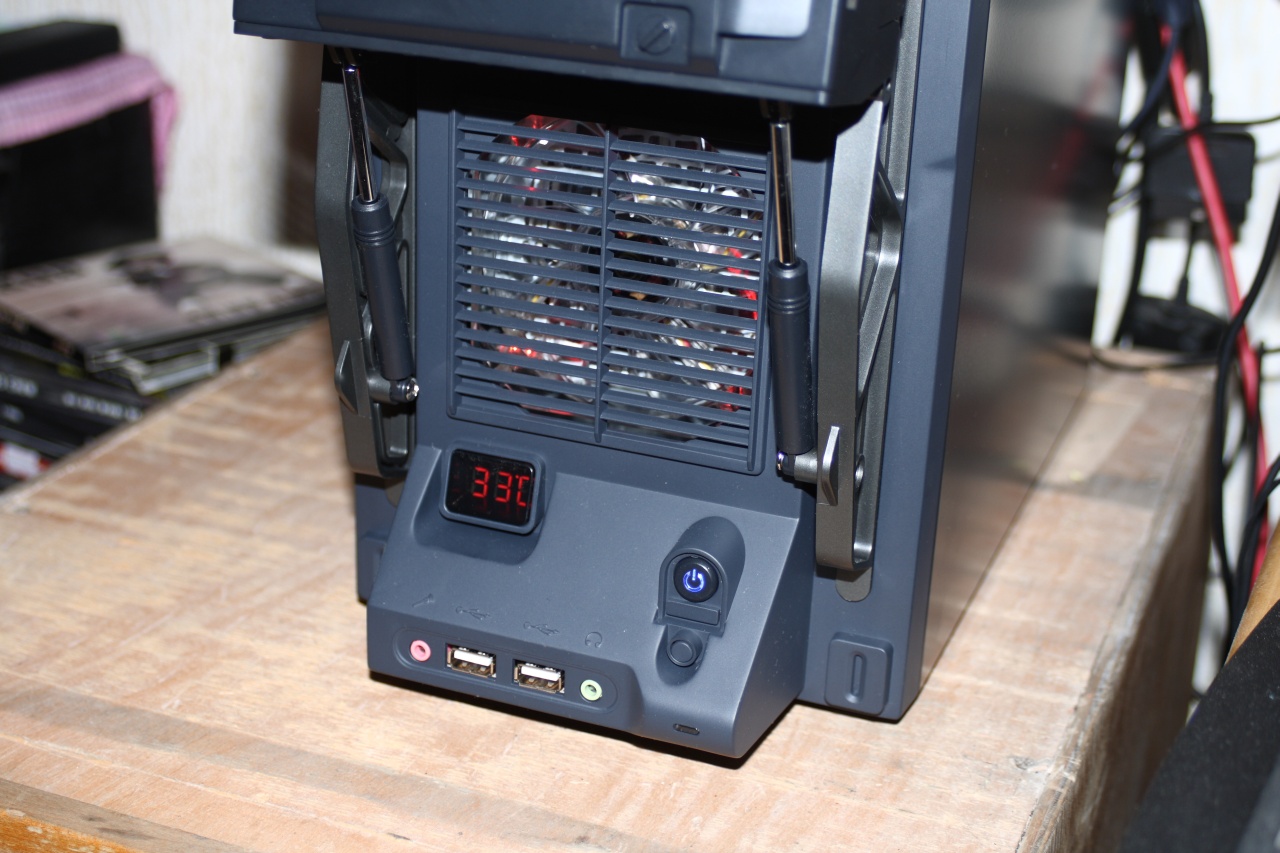
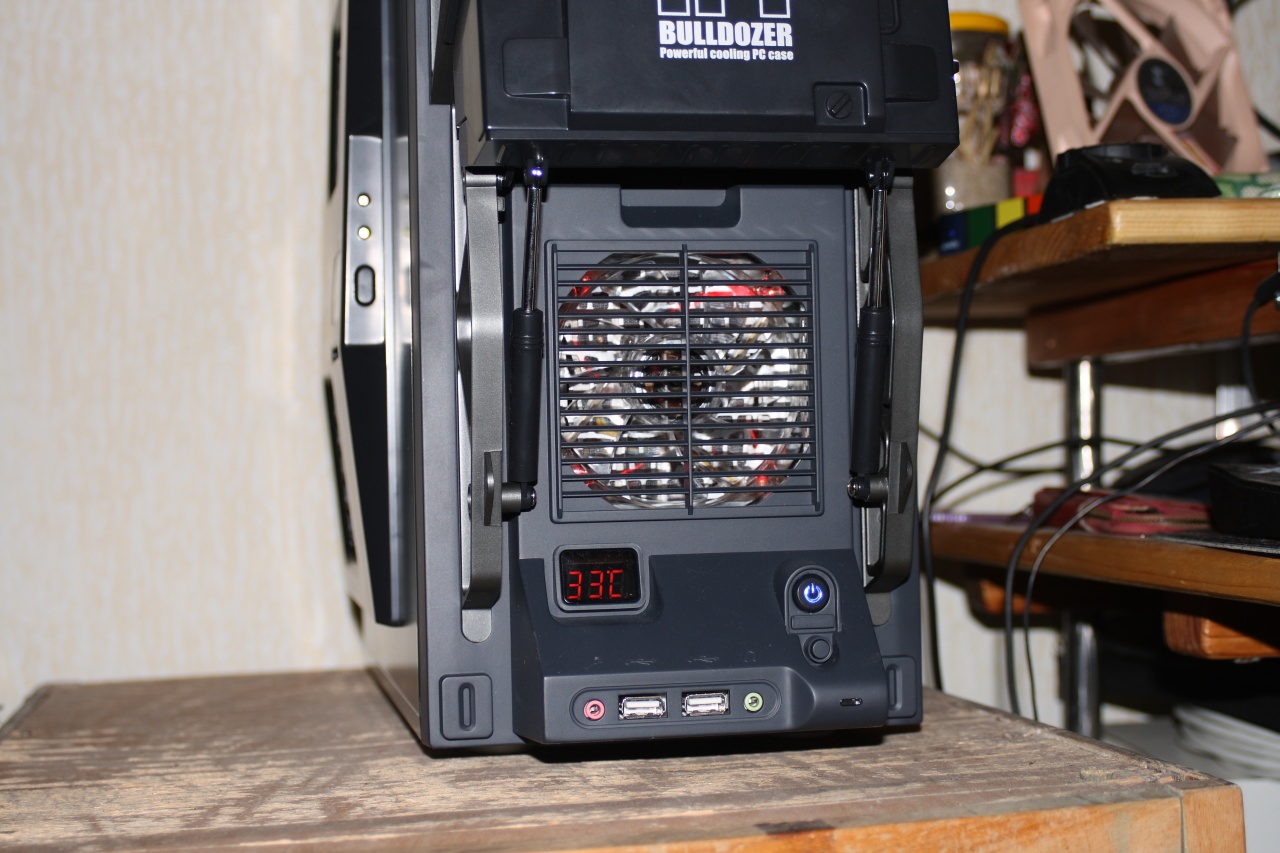
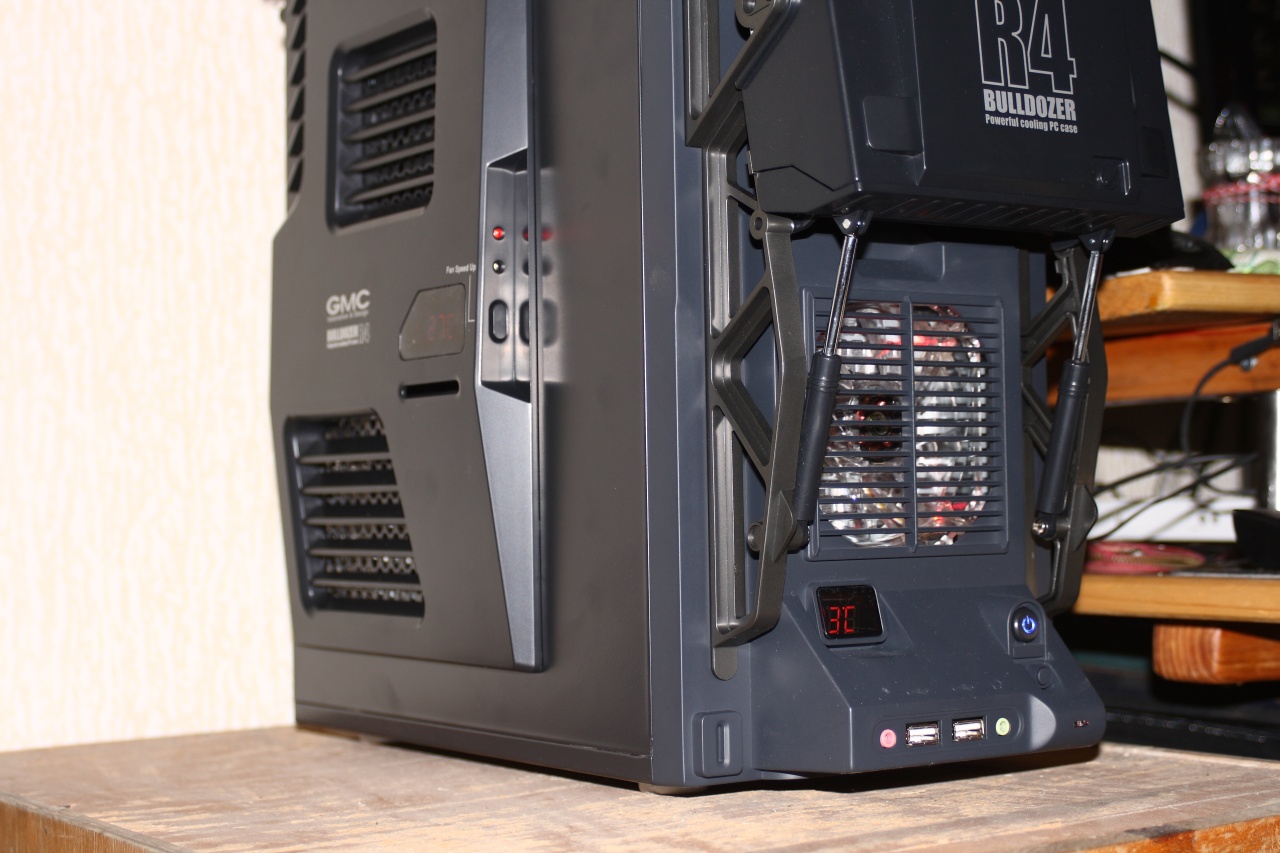
Test system
- Processor: Intel C2D Е8500 @ 3.16 GHz
- Memory: Apacer 2x2GB DDR2 800 MHz
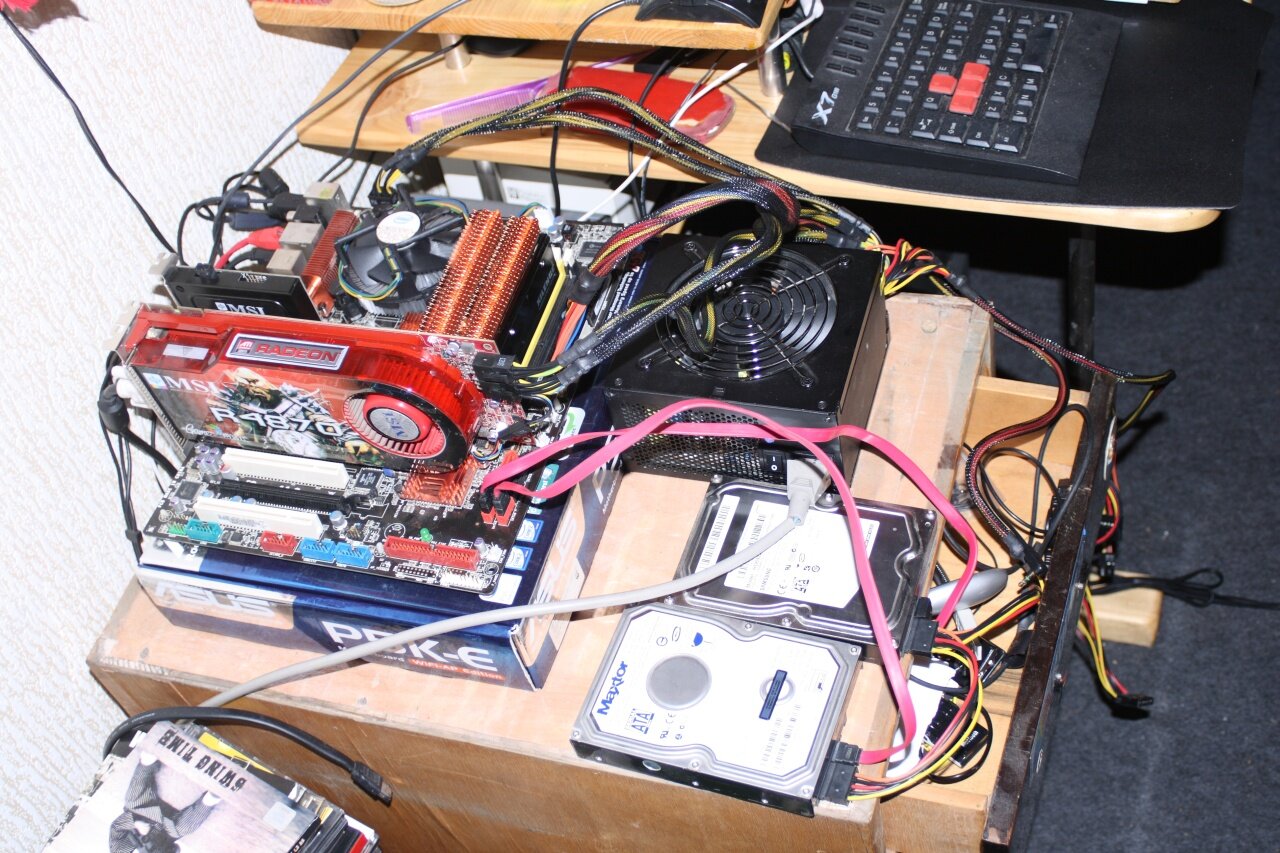
- Motherboard: ASUS P5K-E WiFi
- Video card: ATI Radeon HD 4770
- hard drives: Maxtor 250GB; Seagate 640GB
- PSU: Hipro 550W
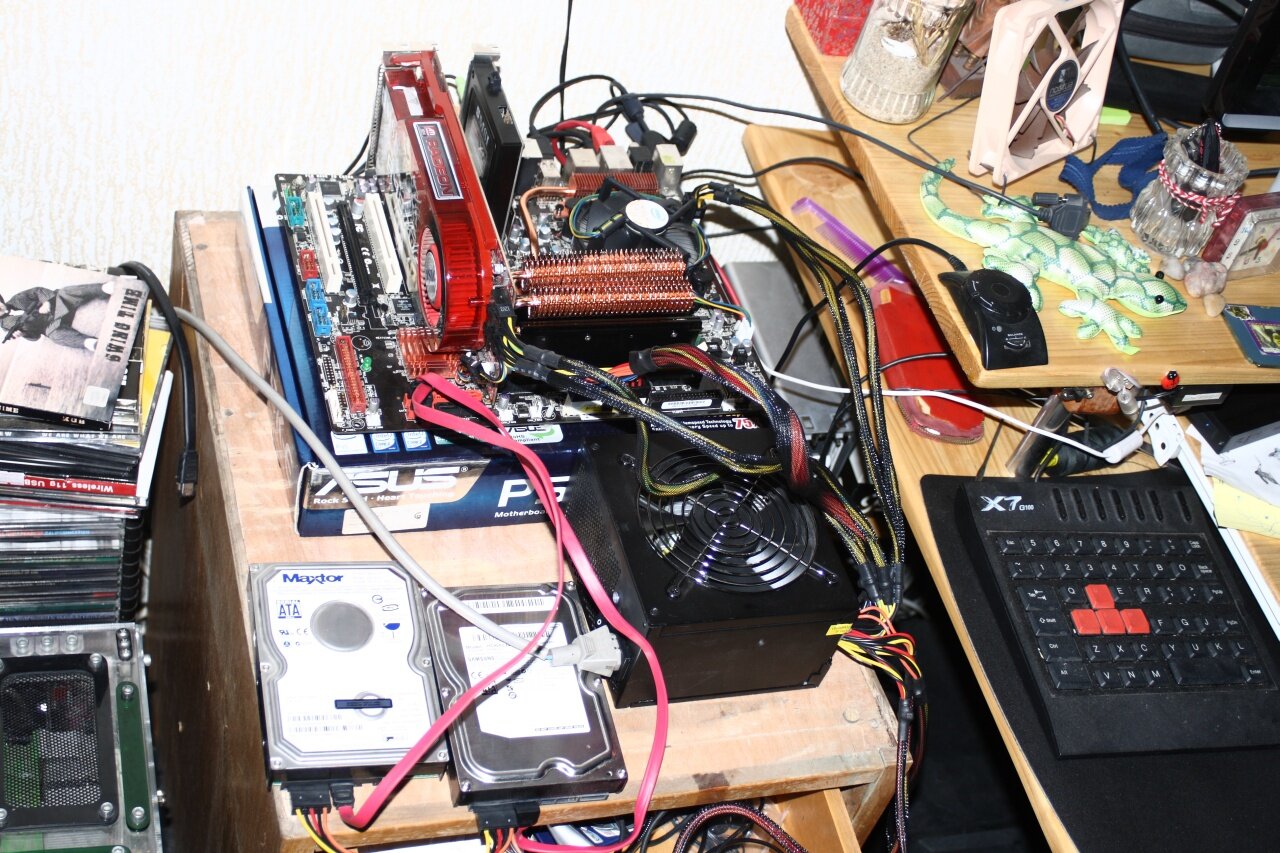
Methodology
We executed groups of four tests: in Idle mode, under full load of the CPU, under full load of the GPU and under full load of both. All tests were concluded INSIDE and OUTSIDE of the case.
Testing in IDLE mode, was done by leaving the machine at Windows desktop for about 10 minutes with no other programs running. For tests under load we gathered results from RealTemp 2.70 (the most adequate program for obtaining temperatures of 45nm Intel processor for now), after 30 minutes of running OCCT 2.0 and Furmark. Results you see are degrees centigrade ABOVE ROOM TEMPERATURE, this way eliminating the influence of ambient conditions for better results. Assuming the room temperature to be 20 degrees and the table shows value of 15 degrees, that means the actual temperature was 35 degrees.